
Printing Forms or Saving as a PDF
From the Main Menu select either the Processing or eFiled / All Years section to locate the file(s) needed for printing.
Remember, the recipient copy can only be printed after the file has been paid.
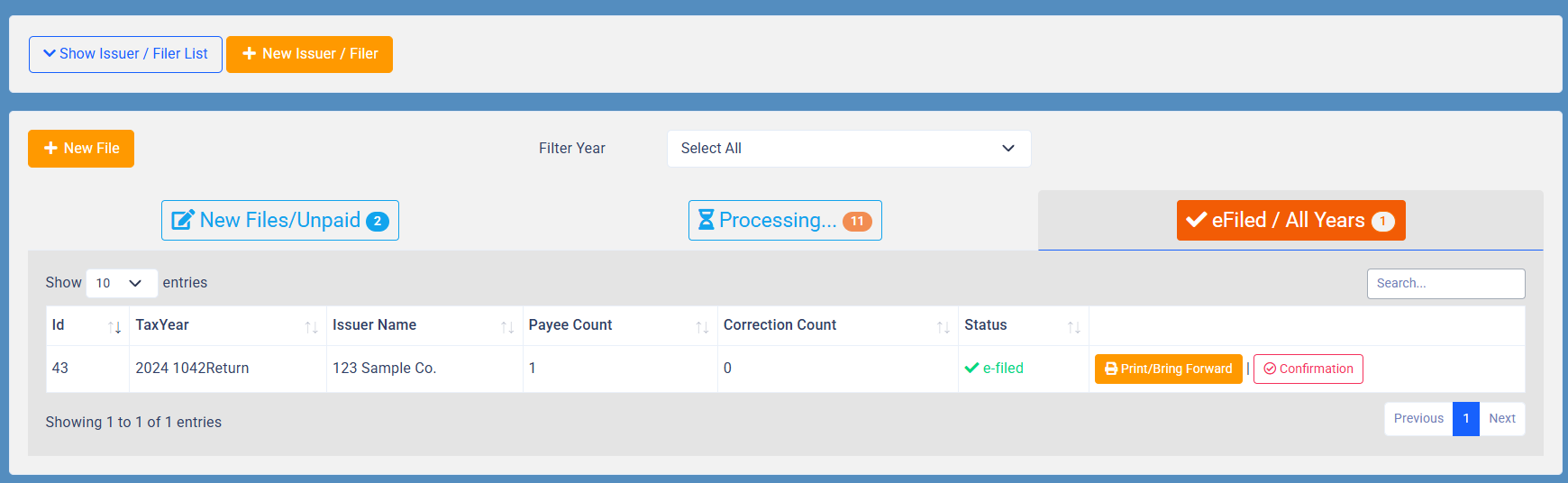
Click the Print / Bring Forward button to the right of the file’s status.
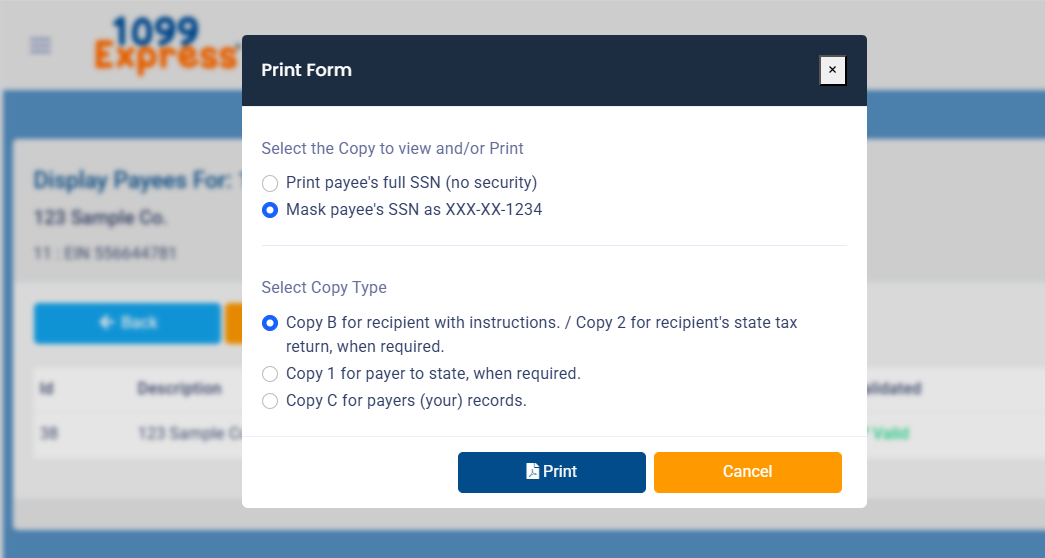
A Display Data screen will appear, select the Print All button to begin printing (or saving) recipient copies. Follow the prompts on the Print Form window to complete.
The forms will be in PDF format which can be saved and emailed (with the payees’ permission) or printed and mailed directly to the payees.
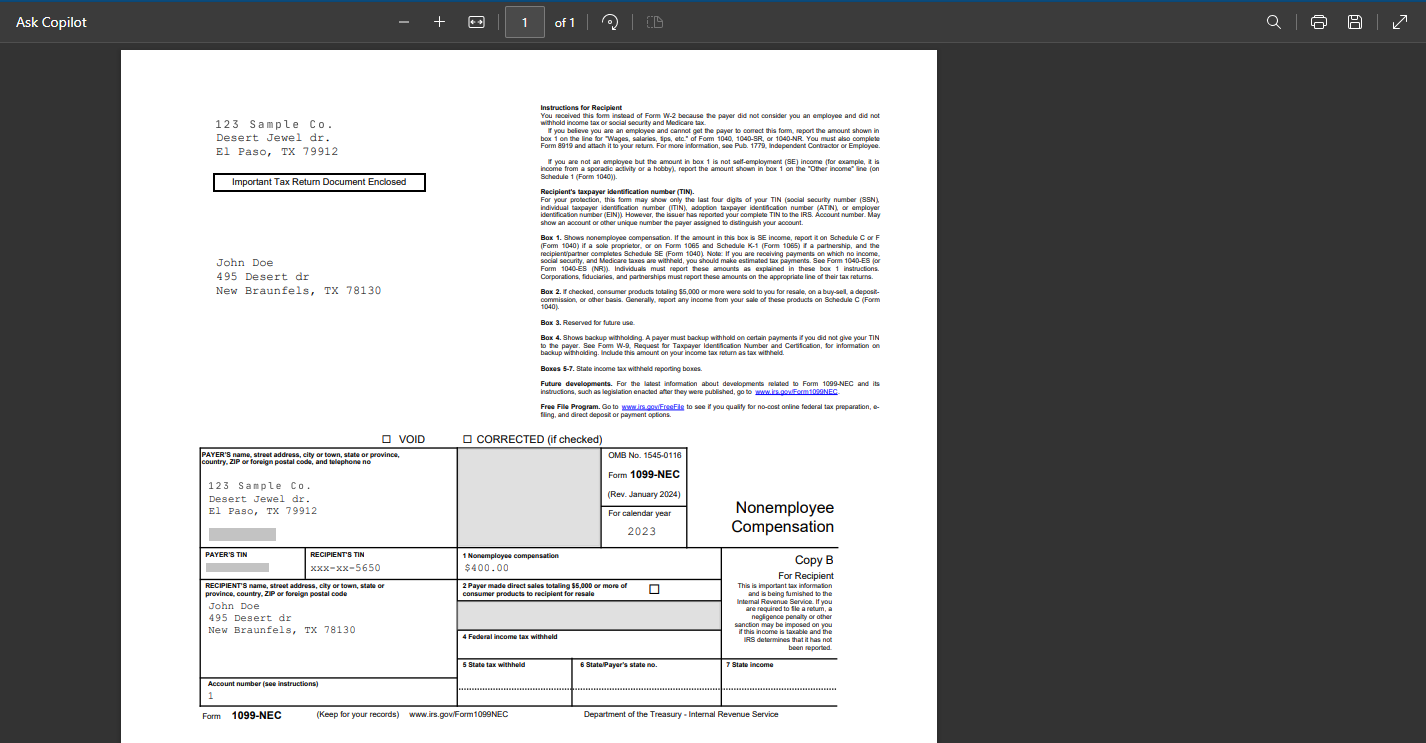
Please Note: It is the Account Owner’s responsibility to get the forms to the payees.