
Bringing File(s) Forward
From the main menu, select the eFiled / All Years section. All files that have been previously e-Filed will be listed on this page.
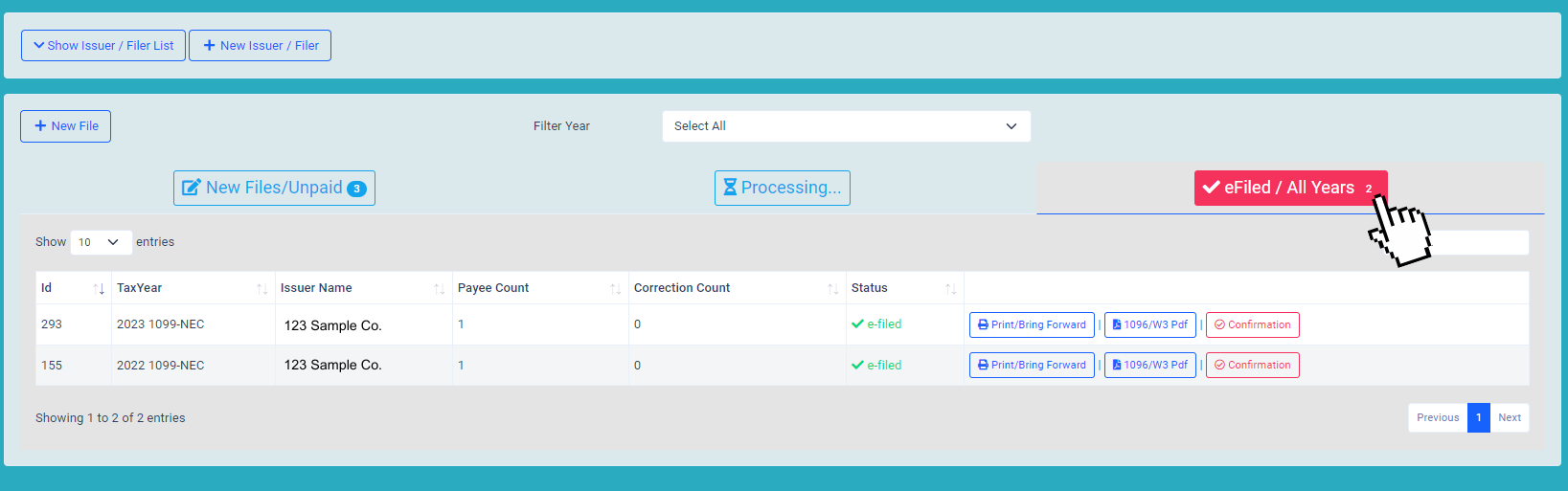
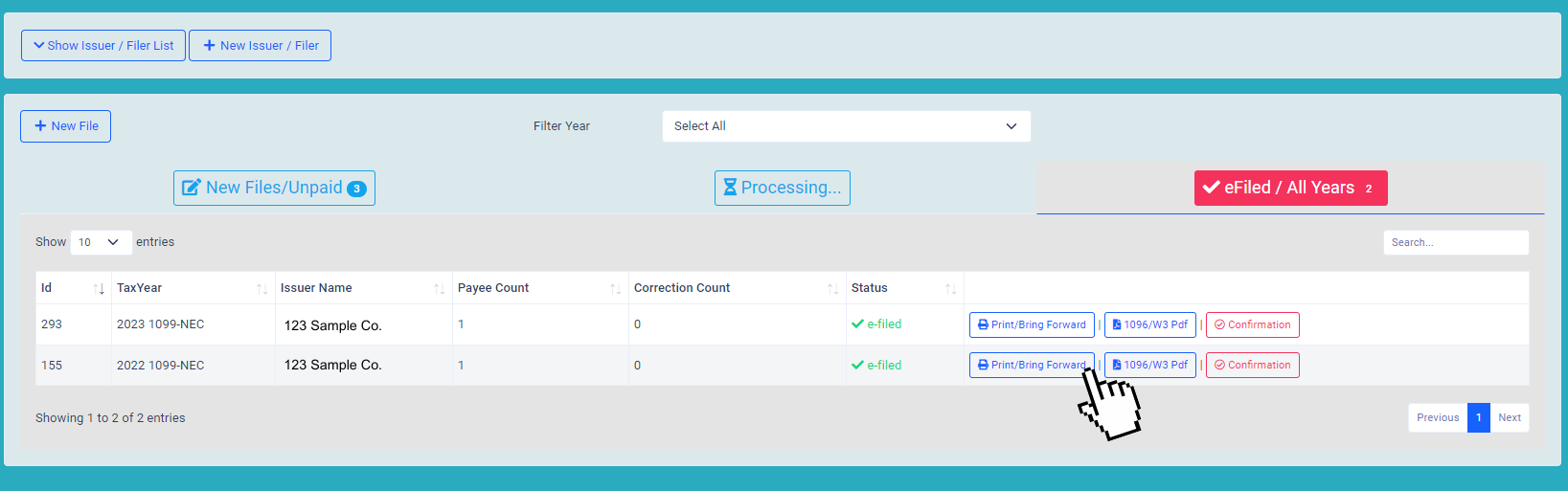
Locate the file that needs to be brought forward and then click the Print / Bring Forward button to the right of the file name.
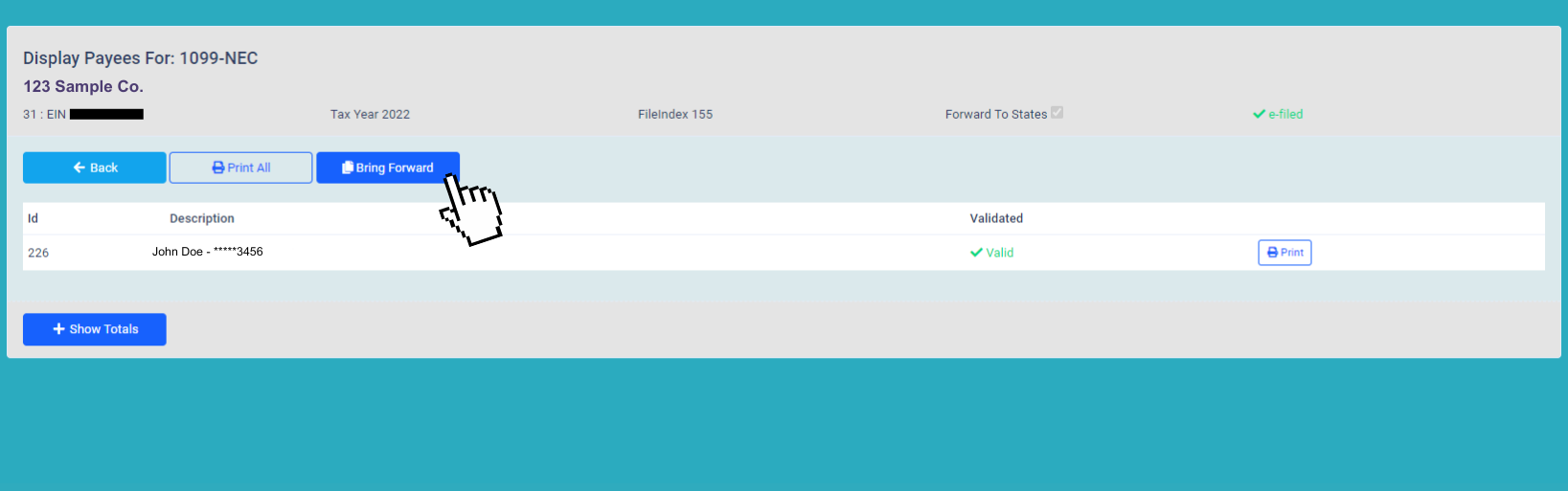
Once on the Display Data’s page, click the Bring Forward button. A pop up box will appear, verify this is the correct file and select bring forward.
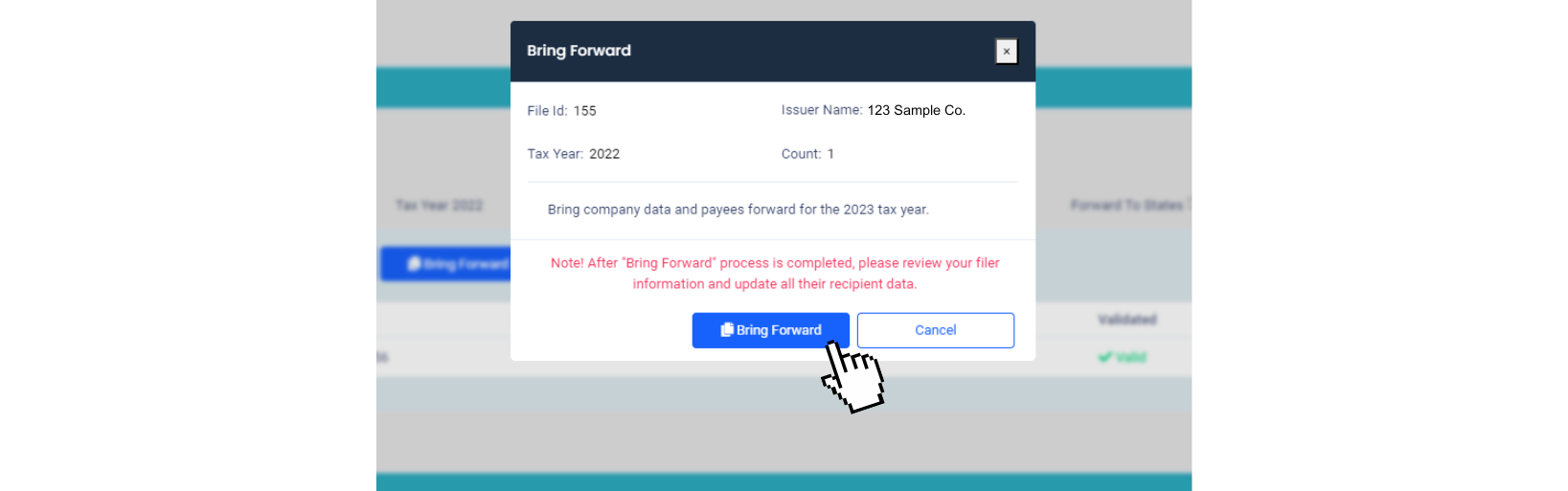
Please be aware that each file can be brought forward only once unless selecting the Correction button.
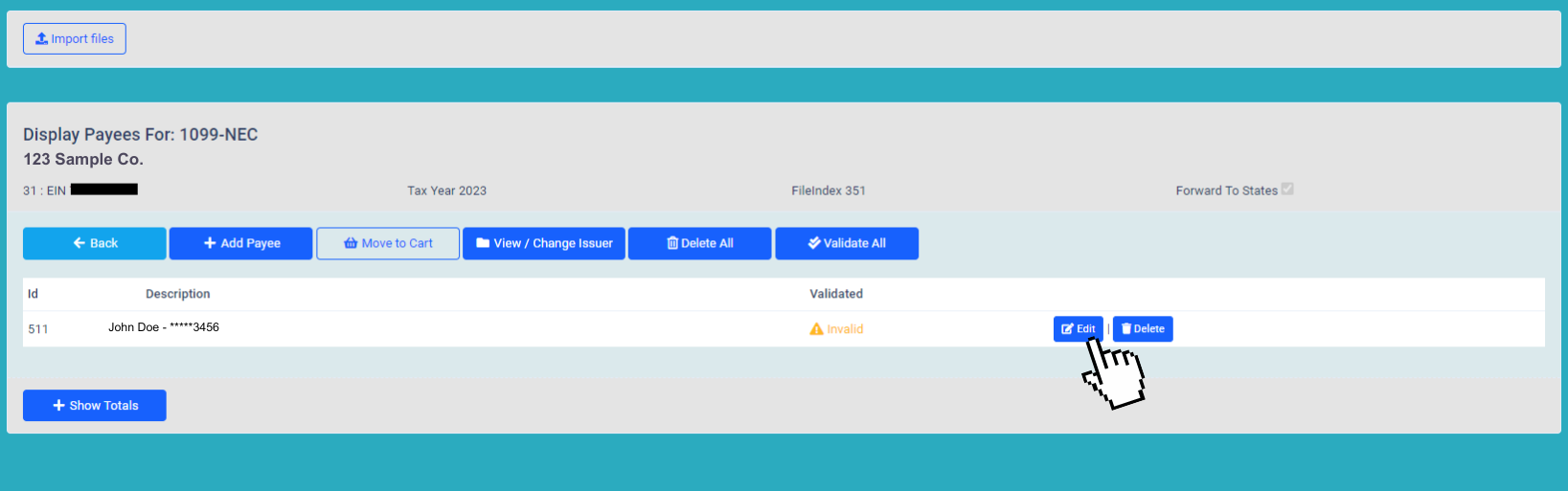
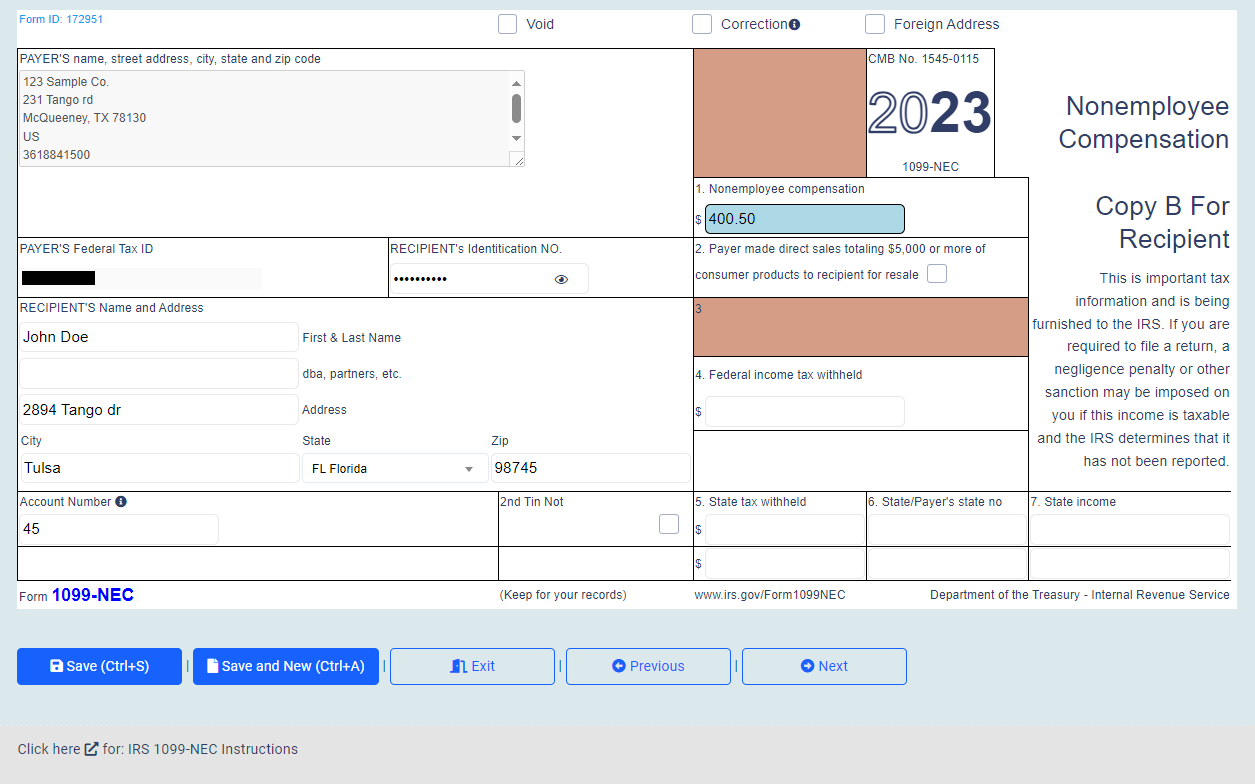
Once the file has been brought forward, click the Edit button to the right of each name to enter dollar amounts for the current tax season. Double check the information for accuracy,
then click Save to move to the next form in the file.
Repeat this process for each recipient in the file.
If there is a recipient listed from the previous year that did not get paid in the current tax year, the option to delete or void them from the list will be available.
Be sure to add any person(s) who were not reported previously, if needed.
We reccomend checking the tax year in the file before proceeding to check out. If the tax year is incorrect, select the View / Change Issuer button to update the tax year.