Creating A New File
From the Main Menu, select the blue + New File button.

Once clicked, the Filer Setup page will open with a variety of Forms to choose from. Please make sure to select the correct form needed to report.
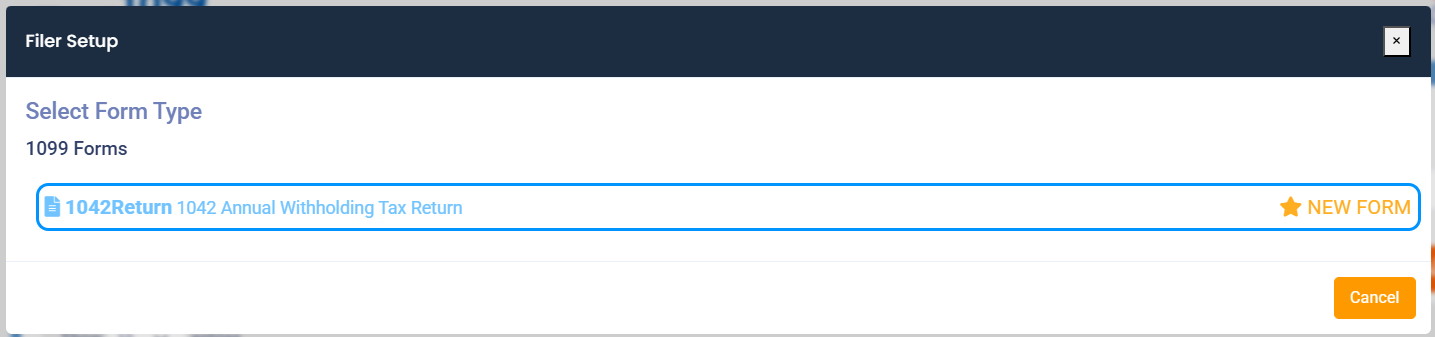
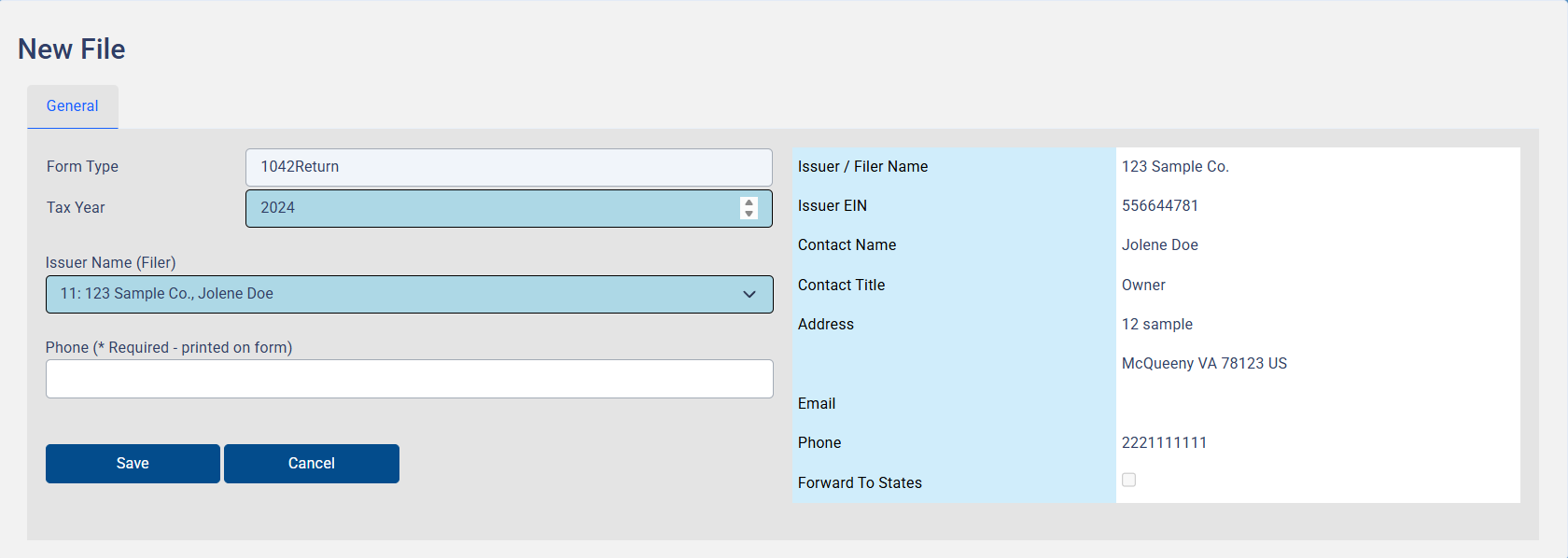
Once a form has been selected, a ‘New File’ screen will appear.
Enter the Tax Year, Issuer Name (Filer), and the Issuer’s Phone Number. After all required fields are entered, click Save.
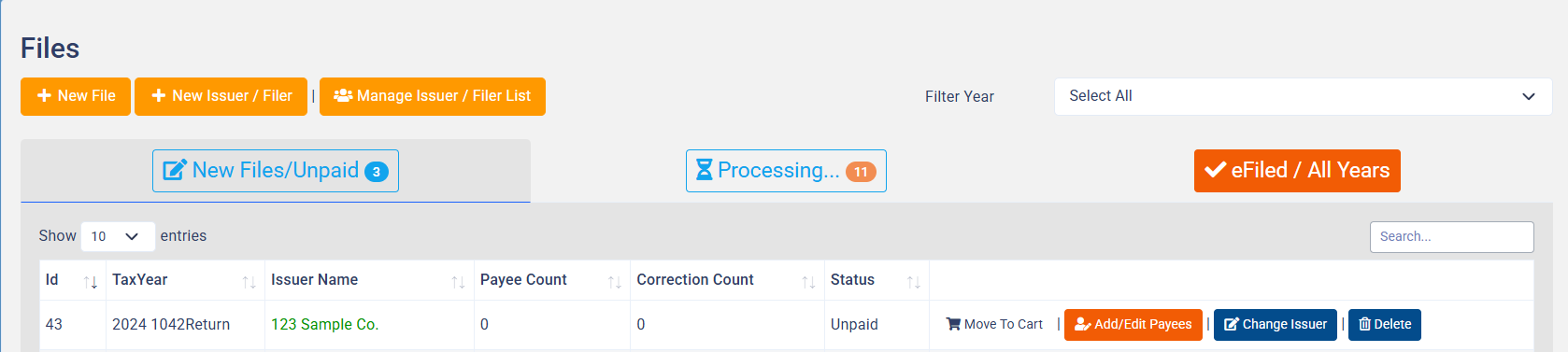
A file will be created for the selected form type, located in the New Files / Unpaid tab. Recipients can be added from the Data Entry button found to the far right of the new file.
Entering Recipient (Payee) Data
On the New Files / Unpaid page, recipient information can be added by clicking the Data Entry button found to the far right of the file’s name.
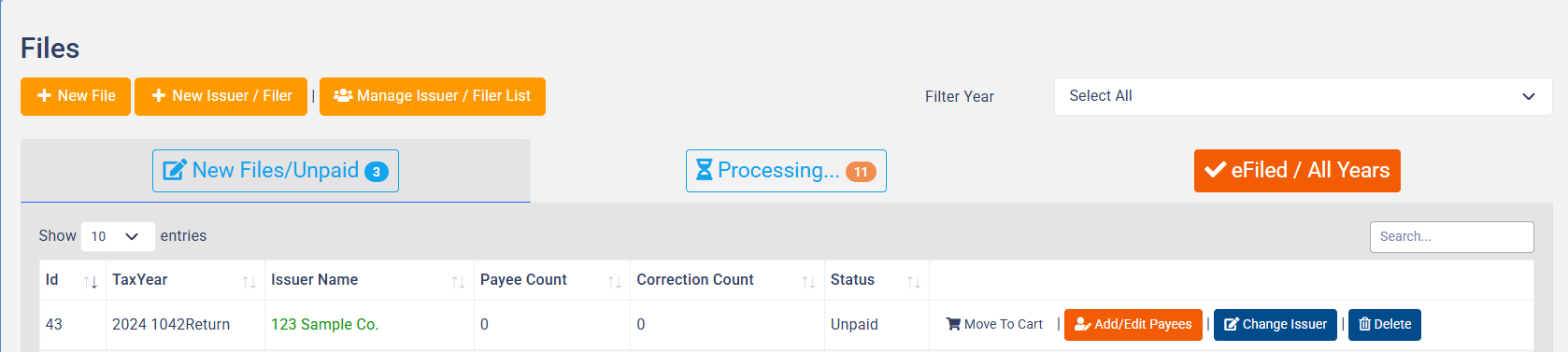
Users will be re-directed to the Display Data page where they can enter data manually by selecting the Add Payee button.
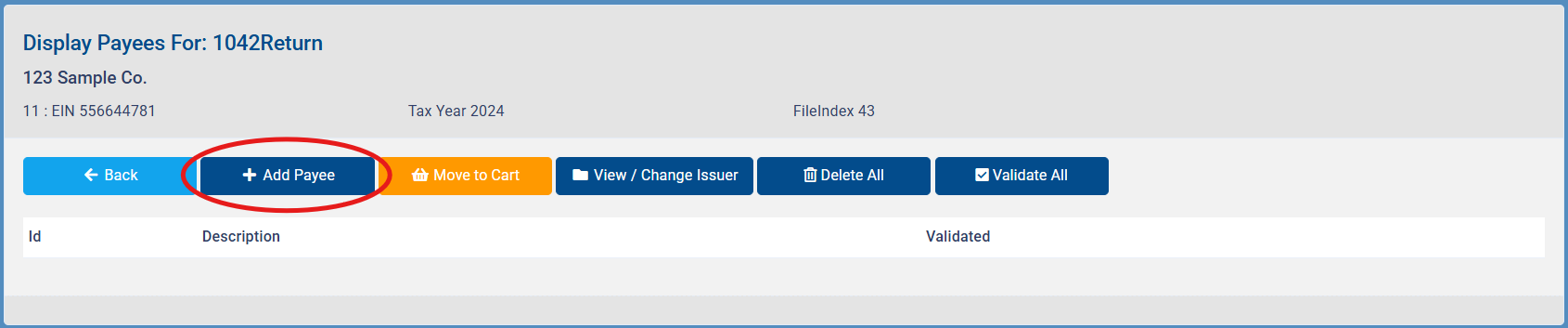
After clicking the Add Payee button, a form page will open. This is where all required data will be entered. Fill out all required fields, and then click Save.
Repeat this process for any additional forms that need to be filed.
Once all recipients have been added to the file, double check each form and the Filer information. It is imperative that the information provided is correct to avoid the need for correction files.
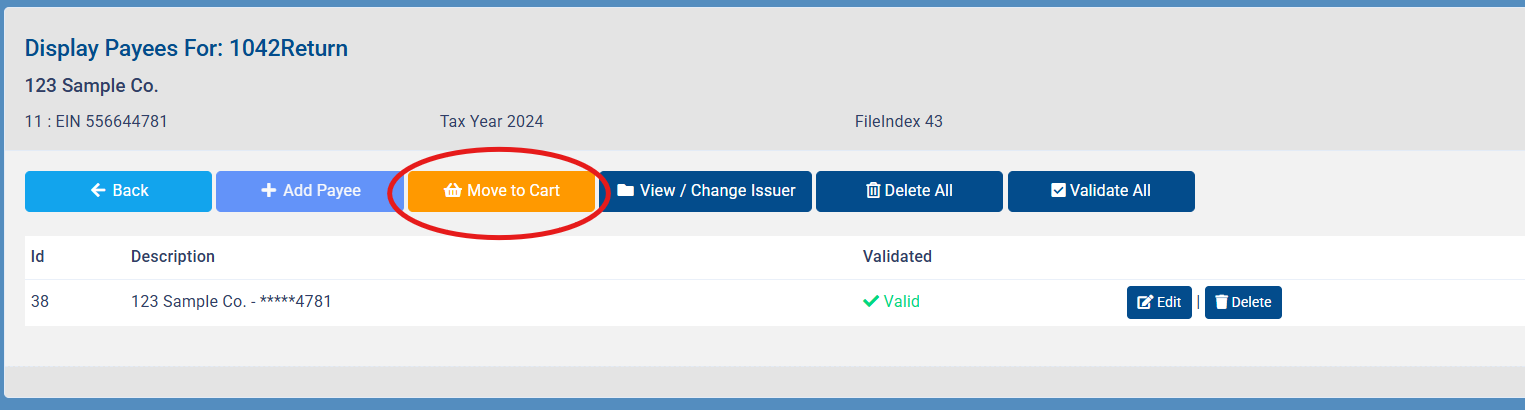
After confirming all informaiton is correct, validate the file by selecting ( Validate All ). Then proceed to Move to Cart to pay and print recipient forms.